

 Sakilahmed
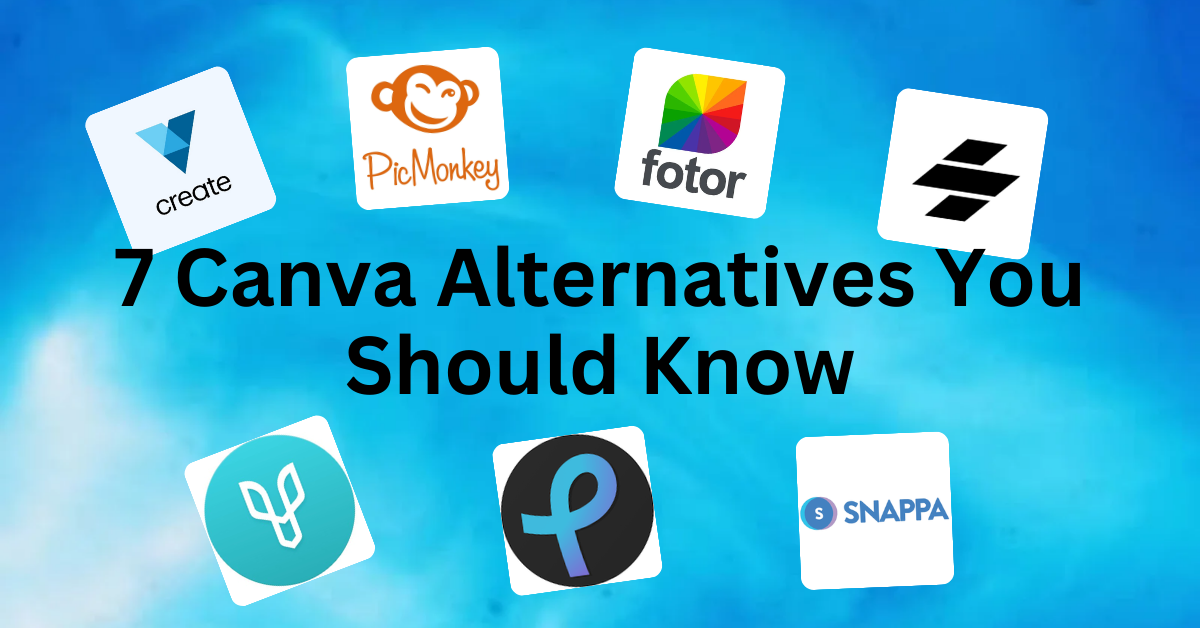
Let’s get real—Canva’s the comfort food of design tools. Reliable, familiar, and always there when you need a quick Instagram post. But after my 109th floral-themed LinkedIn banner, I felt like I was stuck in a creative Groundhog Day. Worse, my cat’s meme page (@SirWhiskersCEO) was getting more engagement than my professional work. Something had to change.
So I went rogue. I spent two weeks testing 7 Canva alternatives, guzzling coffee, and making every design mistake imaginable (more on that later). Turns out, the grass is greener—or at least more colorful—on the other side. Buckle up.
1. VistaCreate: Canva’s Artsy, Animated Cousin
Best for: Anyone who wants to make Canva users jealous with moving designs.
Why It’s a Game-Changer:
- Templates That Don’t Suck: Think neon gradients, glitch effects, and stickers that look like they escaped a Gen-Z TikTok.
- Free Animation: Turn static images into GIFs with one click. I made a bouncing “HIRE ME” button for my portfolio. No regrets.
- 70M+ Assets: Free photos, videos, and fonts that won’t make you cringe.
Step-by-Step Guide:
- Pick a Template: Search “Instagram Story” → Filter “Animated.”
- Edit Text: Swap “Summer Sale” to “Cat Cafe Grand Opening” (because the world needs more cats in bowties).
- Download: Choose MP4 or GIF.
Real-Life Win: My friend Mike runs a coffee shop. His Canva-made posters blended into the caffeine-fueled noise. VistaCreate’s retro “Latte Art Night” flyer (complete with animated steam) went viral locally. Sold-out event, 3 new hires, and a barista dressed as a unicorn.
Try If: You’re tired of static posts. Bonus: Free plan lets you download 10 HD videos/month.
2. Snappa: The “I Have 5 Minutes Before My Zoom Meeting” Savior
Best for: When you need a graphic faster than you can say “deadline.”
Why It’s Faster Than Canva:
- Zero Learning Curve: Tools are labeled like IKEA instructions. Even my dad nailed it.
- Pre-Sized Templates: Instagram Story? LinkedIn Article? TikTok Thumbnail? Snappa’s got your back.
- 1-Click Background Remover: Bye-bye, awkward Zoom call backgrounds.
My Disaster Story: I once designed a client’s ebook cover during a dentist appointment. Snappa’s mobile app saved me (and my dignity).
Pro Tip: Use the “Duplicate” feature to batch-create posts. Made 30 Pinterest pins in 15 minutes. Mic drop.
Case Study: Local bakery “Sweet Bites” posts daily cookie promos. Owner Mia says, “Canva took forever. Snappa? I crank out 3 designs while the cookies bake.”
3. PicMonkey: Photoshop for People Who Still Use “Ctrl+Z”
Best for: Fixing photos so good, your followers will think you hired a pro.
Why It’s Better Than Canva’s Editor:
- Layers: Stack text, images, and effects like a digital lasagna.
- Touch-Up Tools: Remove blemishes, whiten teeth, or give yourself cartoon eyebrows (don’t ask).
- Collage Maker: Perfect for showcasing your 10/10 avocado toast collection.
Real Use Case: My sister Jen runs a travel blog. Her Bali sunset pic looked like a brown blob. PicMonkey’s “Golden Hour” filter + sharpening tool turned it into a screensaver-worthy shot. Her engagement tripled.
Watch Out: Free trial lasts 7 days. After that, it’s $7/month—still cheaper than Canva Pro.
Also Read: 10 Free AI Tools to Create Viral YouTube Shorts in 2025
4. Desygner: Canva for Teams That Hate Each Other
Best for: Collaborative chaos (without the $12/month Canva Pro price tag).
Why Teams Love It:
- Real-Time Editing: Watch your colleague mess up the font live. Fun!
- Brand Kits: Save logos, colors, and fonts so your intern doesn’t accidentally use Papyrus.
- App Integrations: Connect to Dropbox, Google Drive, or your existential dread.
Office Drama Story: My cousin’s candle biz team fought over a holiday ad for weeks. Desygner’s comment feature let them argue in real time. Final design? A festive dumpster fire (but at least it was collaborative).
Try If: Your team’s Slack channel is 90% GIFs and 10% work.
5. Stencil: For Social Media Addicts with Commitment Issues
Best for: When you need to post now before your motivation dies.
Speed Test:
- Open Stencil.
- Search “Motivational Quote.”
- Add text: “Coffee First, Adulthood Later.”
- Download. Time elapsed: 1 minute, 22 seconds.
Hack: Use the “Scheduler” to auto-post to Buffer, Hootsuite, or your crippling anxiety.
Real-Life Win: My neighbor Tom—a fitness coach—posts daily quotes. Canva’s loading time stressed him out. Stencil’s mobile app lets him create while spotting clients at the gym.
6. Fotor: The Overachiever’s Guilty Pleasure
Best for: When you want to humble-brag about your design skills.
Secret Weapons:
- AI Background Remover: Erased my cluttered desk from a Zoom thumbnail. Boss thinks I work in a minimalist loft.
- Batch Editing: Apply filters to 50 product pics at once. Efficiency level: CEO of Life.
- Collage Templates: Perfect for showcasing your cat’s 17 personalities.
Blunder Alert: I once spent 2 hours designing a fake album cover for my air guitar band. Fotor’s “Grunge Overlay” made it look legit. No, I won’t share it.
Also Read: How I Grew My YouTube Channel to 100k Subs Using 7 AI Tools
7. Pixlr: The Rebel That’s Free Forever (Mostly)
Best for: Designers who want power without Adobe’s soul-crishing subscription.
Why It’s a Hidden Gem:
- Pixlr X: Canva’s simplicity + basic photo edits.
- Pixlr E: Layer, mask, and blend like a pro. Made a YouTube thumbnail with glowing text—no degree required.
- No Sign-Up Needed: Jump straight in. Perfect for incognito meme creation.
Confession: I redesigned my entire LinkedIn banner during a boring webinar. Productivity? Questionable. Results? Fire.
Mistakes I Made (So You Can Laugh & Learn)
- Watermarkgate 2023: Used Snappa’s free plan for a client project. Forgot to remove the “SAMPLE” stamp. Client asked, “Is this a rough draft?” Cue existential crisis.
- Font Overload: Designed a flyer with 5 typefaces. Looked like a ransom note. My mom asked if I needed help.
- Animation Overkill: Created a TikTok video with 10 flashing effects. Comments: “Are you having a stroke?”
Lesson: Less is more. Unless it’s coffee.
Tool Comparison: Which One’s Your Soulmate?
| Tool | Best For | Free? | Learning Curve | Quirk Factor |
| VistaCreate | Animations | ✅ | 3/10 | ⭐⭐⭐⭐ |
| Snappa | Speed | ✅ | 1/10 | ⭐⭐ |
| PicMonkey | Photo Editing | ❌ | 4/10 | ⭐⭐⭐ |
| Desygner | Teams | ✅ | 2/10 | ⭐⭐ |
| Stencil | Social Media | ✅ | 1/10 | ⭐ |
| Fotor | All-in-One | ✅ | 3/10 | ⭐⭐⭐ |
| Pixlr | Advanced Edits | ✅ | 5/10 | ⭐⭐⭐⭐ |
FAQ (No Boring Answers)
“Aren’t these just Canva clones?”
Nope. VistaCreate does animations. Snappa’s faster than your Wi-Fi. Pixlr lets you edit like a pro. Canva who?
“I’m design-dumb. Help!”
Start with Stencil or Snappa. If I can teach my 60-year-old dad, you’ve got this.
“What about Canva Pro?”
It’s like a gym membership—great if you use it. But most of us? Nah.
“Can I use these for my Etsy shop?”
Yes! My cousin’s candle biz thrives on Desygner. Just avoid Papyrus.
How to Pick Your Perfect Tool
- Need speed? Snappa or Stencil.
- Want to animate? VistaCreate.
- Working with others? Desygner.
- Photo-editing nerd? PicMonkey or Fotor.
- Rebel on a budget? Pixlr.
Still stuck? Flip a coin. Or try all 7 and blame me later.
Final Thoughts
Look, Canva’s like that trusty pair of jeans. But sometimes? You need leather pants. These tools are your leather pants—bold, a little risky, and guaranteed to turn heads.